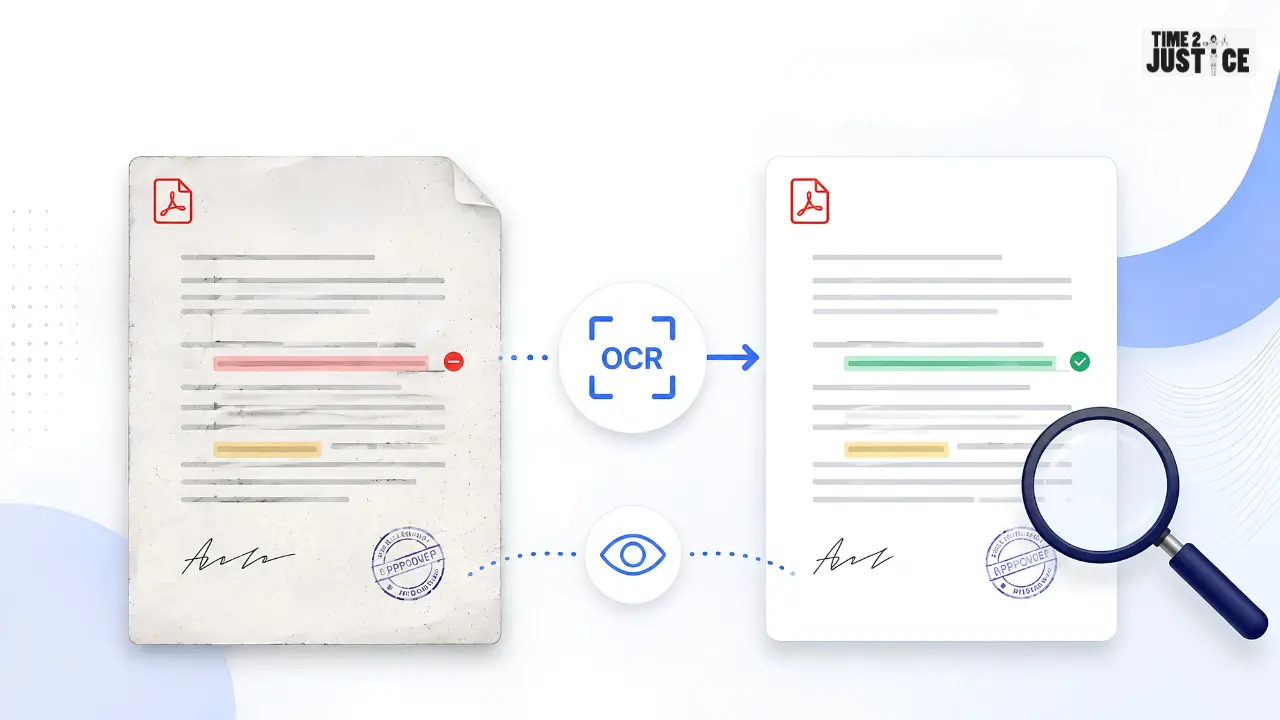
There are three main approaches, depending on the type of changes you need to identify.
Method 1: Use OCR Before Comparing
OCR is useful when your main goal is identifying changes in written content.
A typical workflow is:
- Open the scanned PDF in an OCR-capable application.
- Run OCR to recognize the text.
- Check that the resulting text is searchable.
- Process the second PDF in the same way.
- Compare the recognized text.
- Verify important differences against the original pages.
OCR can make scanned content searchable and suitable for text-based comparison. Modern PDF software provides OCR specifically for converting scanned document images into searchable text.
OCR is particularly useful for comparing:
- Contract clauses
- Dates
- Names
- Payment amounts
- Addresses
- Policy wording
- Other textual information
However, OCR results should be checked carefully when scans are low quality or contain complex layouts.
Method 2: Use Visual Comparison
Visual comparison focuses on how the pages look rather than relying only on extracted text.
It can help identify changes involving:
- Page layout
- Images
- Signatures
- Stamps
- Handwritten annotations
- Tables
- Logos
- Headers and footers
- Formatting
- Page positioning
Visual comparison is especially useful when the scanned document contains information that OCR may not recognize reliably.
For example, a new stamp or handwritten annotation may be visually important even if it does not appear in the extracted text.
Modern PDF comparison tools can compare text as well as images, graphics, formatting, annotations and other visual elements.
Method 3: Combine OCR and Visual Comparison
For important scanned documents, combining both methods can provide a more complete review.
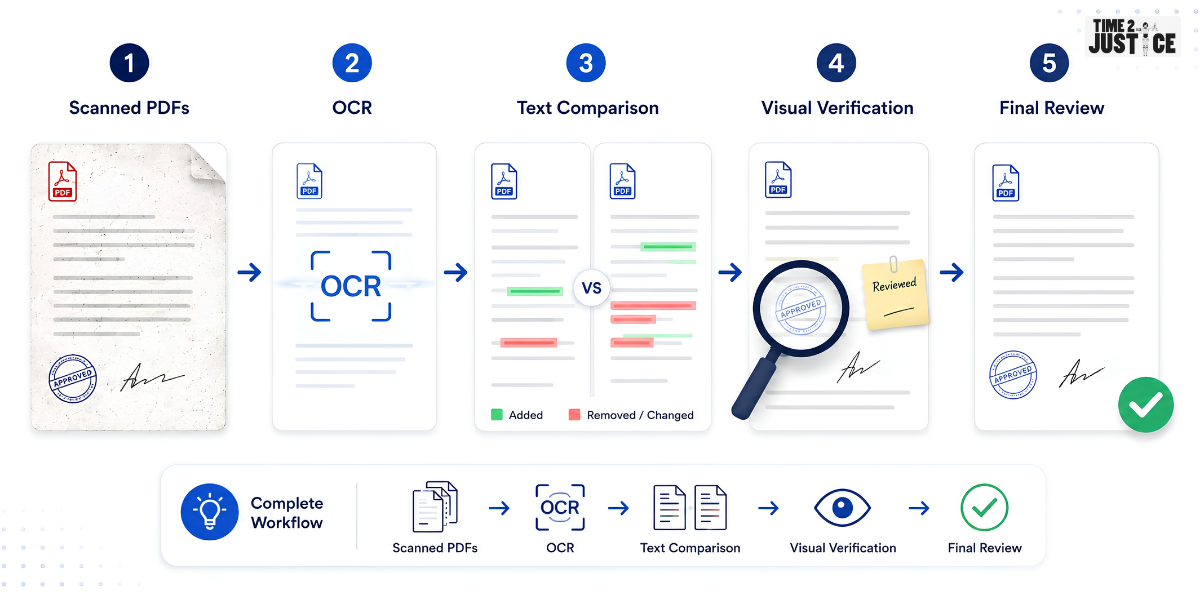
A practical workflow is:
Scanned PDFs → OCR → Text Comparison → Visual Verification → Final Review
OCR makes textual content easier to search and compare, while visual verification helps identify changes that may not be represented accurately in the extracted text.
This approach is particularly useful for contracts, signed agreements, compliance documents, and business records.
OCR vs Visual Comparison
OCR and visual comparison serve different purposes.
| Method | Best For | Main Advantage | Limitation |
|---|
| OCR-based comparison | Wording and text changes | Makes scanned content searchable | OCR may introduce recognition errors |
| Visual comparison | Layout and visual changes | Identifies page-level differences | May not clearly explain wording changes |
| Combined approach | Important scanned documents | Reviews text and visual changes | Requires additional review |
If your main concern is changed wording, OCR-based comparison may be sufficient for many documents. If signatures, stamps, images, handwriting, or formatting are important, visual comparison should also be considered.
What Changes Can You Find in Scanned PDFs?
Depending on the comparison method and document quality, you may identify several types of differences.
Text Changes
OCR-based comparison can help identify:
- Added or deleted words
- Modified sentences
- Changed dates
- Updated names
- Different amounts
- Revised clauses
- Changed numbers
Structural Changes
You may also identify:
- Added or removed pages
- Moved sections
- Rearranged paragraphs
- Changed tables
- Modified headers or footers
Visual Changes
Visual comparison can help identify:
- New signatures
- Stamps or seals
- Handwritten notes
- Images
- Logos
- Formatting changes
- Page layout differences
Not every comparison method detects all of these changes in the same way, so choose the approach according to what you need to verify.
Common Problems When Comparing Scanned PDFs
Several issues can affect comparison results.
Poor Scan Quality
Low-resolution, blurry, or heavily compressed scans can reduce OCR accuracy and make visual comparison more difficult.
Skewed or Rotated Pages
Pages scanned at an angle can affect text recognition and page-to-page comparison.
Complex Layouts
Tables, multiple columns, footnotes, headers, and unusual formatting can make OCR more difficult.
Handwritten Content
Handwritten notes may not be recognized reliably and should be checked visually.
Different Page Sizes
Different paper sizes, cropping, margins, or positioning can create visual differences that are unrelated to actual content changes.
Different Scan Settings
If two versions have significantly different resolution, contrast, or color characteristics, automated comparison may produce unnecessary differences. Keeping scan settings consistent can reduce this problem.
Best Practices for Comparing Scanned PDFs
Follow these practices to improve comparison reliability:
Use High-Quality Files
Start with the clearest versions of both documents. Better source quality generally provides better input for OCR and visual comparison.
Check OCR Results
Pay particular attention to dates, amounts, names, numbers, addresses, and legal terminology after OCR processing.
Compare the Correct Versions
Confirm which file is the original and which is the revised version before beginning the comparison.
Use Consistent Scan Quality
When possible, compare documents created with similar scanning settings. This can reduce visual differences caused by scanning rather than actual document revisions.
Review Important Pages Visually
Even when OCR identifies text changes, visually inspect important pages for signatures, stamps, annotations, tables, and other visual elements.
Keep the Original Files
Retain the original scanned PDFs so that important findings can be checked against the source document.
When Should You Compare Scanned PDFs?
Scanned PDF comparison can be useful for:
- Scanned contracts
- Signed agreements
- Legal records
- Court documents
- Invoices
- Procurement documents
- Compliance records
- Archived business documents
- Forms
- Historical records
If you're comparing standard digital PDFs with selectable text, see our How to Compare Two PDF Files Online guide for a broader PDF comparison workflow.
For comparison across different document formats, you can also explore How to Compare Documents Online: Step-by-Step Guide.
These articles cover broader comparison workflows, while this guide focuses specifically on the additional challenges involved in comparing scanned PDFs.
How AI Can Help With Scanned Document Comparison
AI-powered document comparison can help reviewers locate changes more efficiently, particularly when working with lengthy or complex documents.
Depending on the tool and document quality, AI-assisted comparison may help organize changes into categories such as:
- Added content
- Deleted content
- Modified clauses
- Structural changes
- Formatting changes
However, the quality of the source document still matters. If OCR incorrectly recognizes a number or legal term, a comparison system may report a difference that does not actually exist in the original scan.
This is why important comparison findings should be checked against the original document.
If your primary use case is comparing contracts, see our AI Contract Comparison: Benefits, Process & Best Practices guide for a more specific overview of AI-assisted contract comparison.
How Time2Justice Can Help With Document Comparison
If you regularly compare legal or business documents, Time2Justice's Compare Documents feature can help identify differences across supported file formats, including PDF, DOC, DOCX, PPTX, and TXT.
For scanned PDFs, the appropriate workflow depends on whether the file contains a usable text layer. If a particular scan requires OCR, verify the extracted text before relying on the comparison results.
The Compare Documents feature can be useful when you need to locate document revisions without manually checking every page.
Time2Justice also provides other document-analysis capabilities that can support the review process:
-
Summarise Document — Helps create concise summaries of lengthy documents so reviewers can understand key information more quickly.
-
Query on Document — Helps users find specific clauses, obligations, dates, or other information within a document.
This creates a broader workflow:
Understand the document → Compare versions → Identify changes → Review important findings
Final Thoughts
Comparing scanned PDFs requires a different approach from comparing ordinary digital PDFs. Because scanned documents may contain page images instead of searchable text, OCR can be an important first step for identifying wording and clause changes.
However, OCR may not capture every meaningful element. Visual comparison can help identify signatures, stamps, handwritten notes, images, formatting, and page-level changes that may be missed during text extraction.
For important documents, a combined workflow of OCR, text comparison and visual verification provides a more thorough way to review revisions.
Whether you're comparing scanned contracts, legal records, business documents, or archived agreements, understanding the type and quality of the PDF before choosing a comparison method can make the process more reliable and efficient.
Frequently Asked Questions
Can you compare two scanned PDFs?
Yes. If the PDFs are image-based, OCR can convert the scanned content into machine-readable text before performing a text-based comparison. Visual comparison can then be used to verify page-level differences.
How do I compare scanned PDFs using OCR?
Process both scanned PDFs with OCR to create searchable text, compare the recognized content and then verify important differences against the original scanned pages.
Is OCR enough to compare scanned PDFs?
Not always. OCR can identify text changes, but visual comparison may be needed for signatures, stamps, handwriting, images and formatting.
Why does OCR produce incorrect differences?
OCR errors can result from poor scan quality, low resolution, page rotation, complex layouts, fonts, or background noise.
Can scanned contracts be compared?
Yes. OCR can help compare wording and clauses, while visual verification can identify changes to signatures, stamps, handwriting and formatting.